Instructions to Participate In Frequency Testing
Test Overview
For more information about this test and why we are conducting it, see this article.
Test Timeline
Saturday, 8/1/26 at 10pm: switch nodes to MediumSlow slot 22 Concluded
Saturday, 8/8/26 at 10pm: switch nodes to LongTurbo slot 12 Concluded
Saturday, 8/14/26 at 10pm: switch nodes back to LongFast 20 and tune into the discussion of the result in the PhillyMesh Discord. Postponed
Wednesday, 8/12/26: Testing pivoted to a 3rd test based on new findings from the first two tests. Deeper analysis of the regional noise many members experienced was investigated by members using a software-defined radio (SDR).
This new extended test is being referred to as LongFast 910 or LF910 for short. It is slightly different than the previous tests in that you are not selecting a custom frequency slot, but a custom frequency override!
This override allows us to slide between the bands of noise and RFID interference we’ve discovered and have clearer communications! Preliminary testing has gone so well, in fact, that we’ve moved this phase to extended testing with no specified end date at this time!
Full Instructions
Below are the baseline recommendations for Meshtastic nodes in the Philadelphia area. If you wish to participate in the test but require an exception to any of the settings, please discuss with the PhillyMesh Discord first.
These settings have been chosen to prioritize message reliability and reduce mesh congestion at the expense of position and telemetry traffic. Learn more about the reasons behind this test here. As PhillyMesh moves to a non-default preset/slot to continue this effort, nodes that wish to prioritize position and/or telemetry should remain on the default LongFast20.
Nodes on the PhillyMesh non-default preset/slot will be asked to adhere to the below settings, with private and then public asks to tweak settings. If these are not responded to, a non-conforming node may be “ignored” by neighboring nodes to ensure mesh stability and message reliability.
What category does my node fall into?
Base/Stationary Nodes are nodes that are generally not moving around. Solar roof nodes, nodes that sit on your desk, or other nodes that stay in one place fall into this category.
Mobile nodes are ones that move around frequently. These can be a node that you keep in your pocket or your bag, or a node built into your vehicle.
If you want more clarification on these categories, the settings themselves, or why we’ve chosen these settings, ask in the PhillyMesh Discord.
Settings
Before making the below changes, you must update your node to 2.7.26 via https://flasher.meshtastic.org/. Some of the below changes are not compatible with older firmware.
If your node doesn’t support newer firmware or flashing on the webpage and you need help, feel free to ask for some in the PhillyMesh Discord!
| Setting Name | Base/Stationary Node | Mobile Node | Notes |
|---|---|---|---|
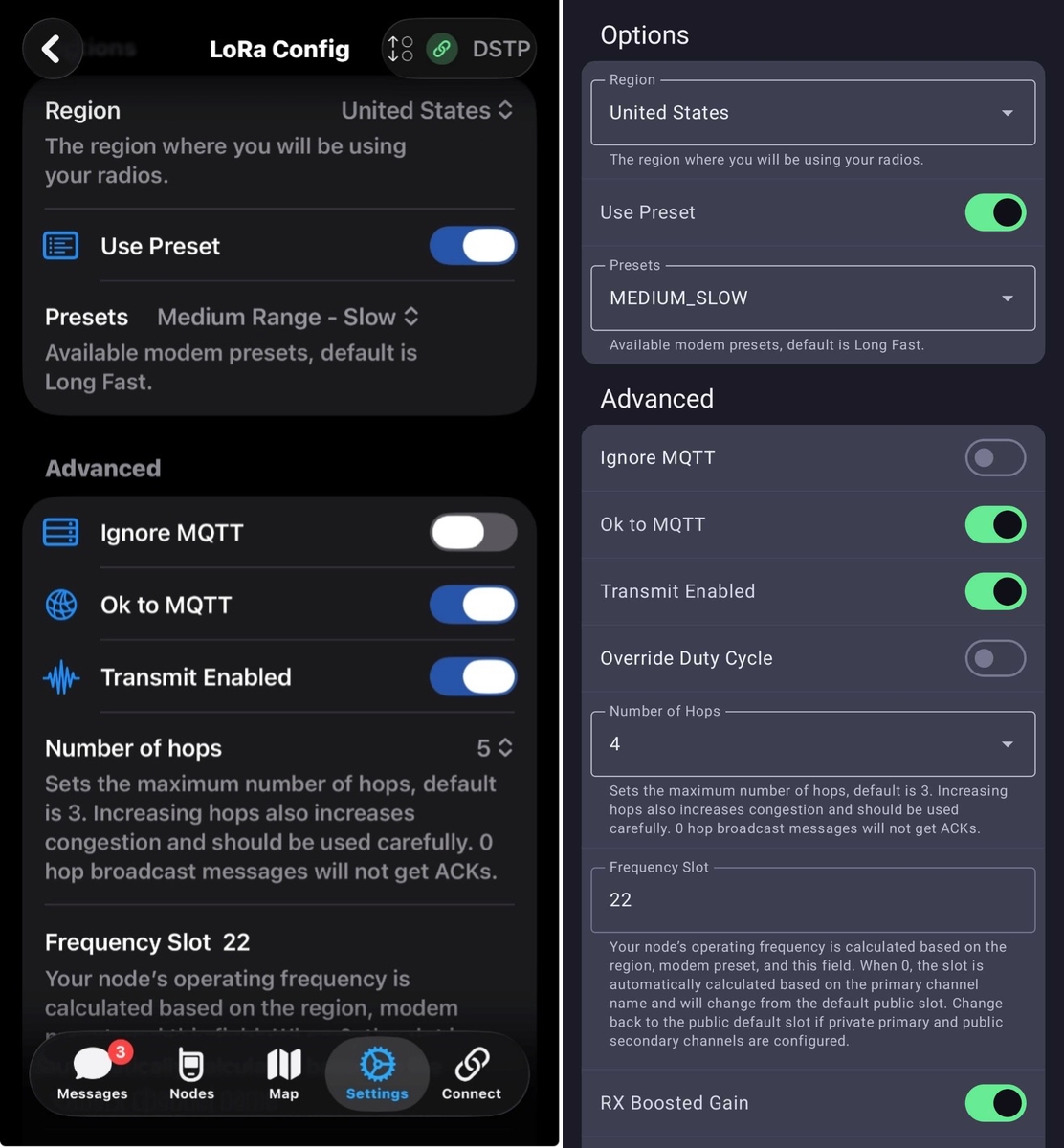
Preset | LongFast with a frequency override of 910 | LongFast with a frequency override of 910 | Set Default Hops to 3. If you are way out in the burbs or a rural area, you can bump this up to 4 or even 5. Going up to 6 and higher is never needed and is harmful to the mesh. |
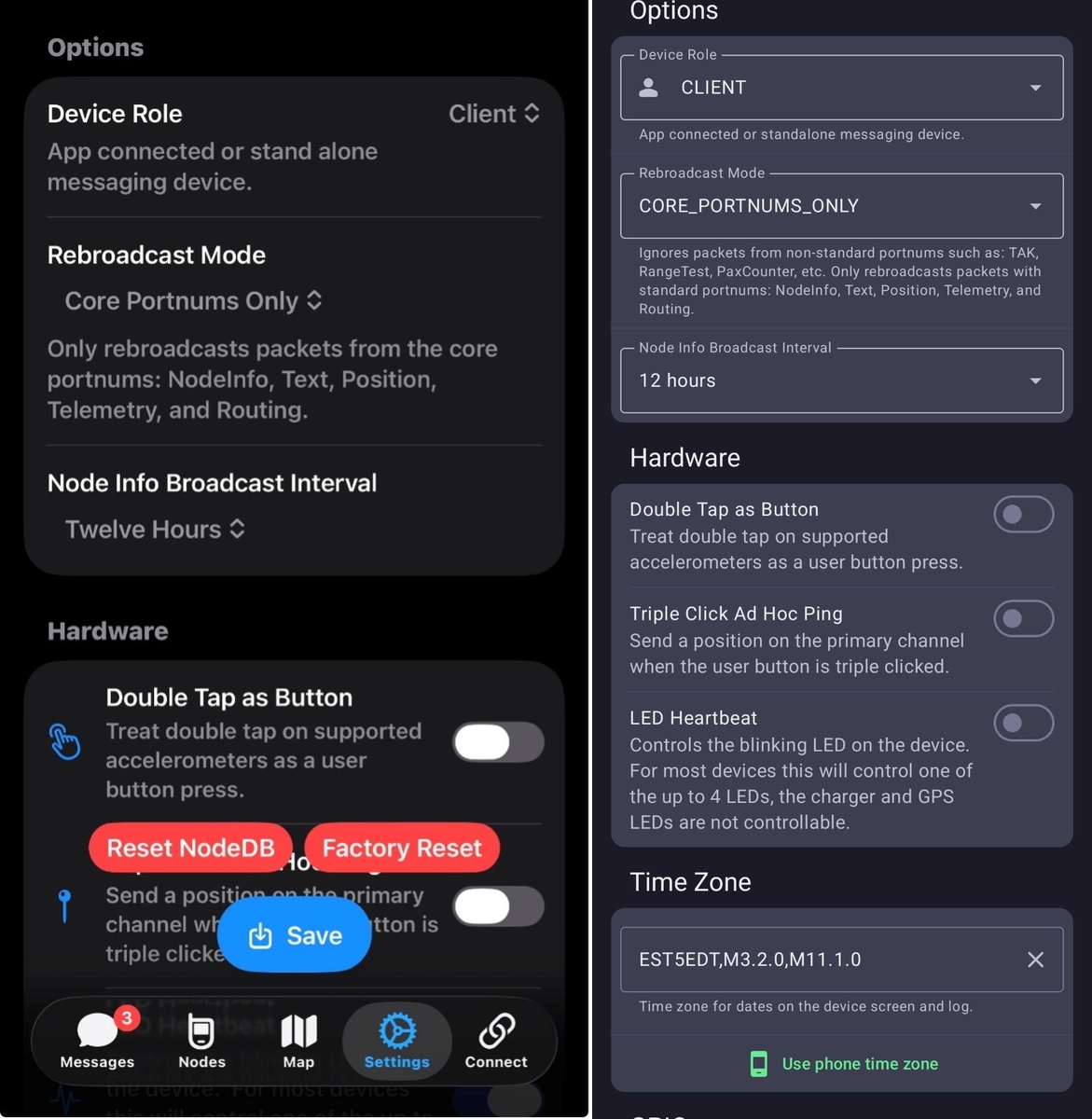
Device Role | (Choose one of the following:) Client, Client_Base, Client_Mute | (Choose one of the following:) Client, Client_Mute | T-1000e and Wismesh Tag (or any mobile node without an external antenna) should always be client_mute. Do not use anything other than these roles without consulting the PhillyMesh Discord. The other roles are usually harmful to the mesh without any benefit to you. |
Rebroadcast Mode | core_portnums_only | core_portnums_only | All is the default, which works, but this setting eliminates non-standard packets such as Range Tests from being rebroadcast. This can help reduce congestion from improperly set-up or rudely operating nodes. |
NodeInfo Broadcast Interval | >= 12 Hours | >= 12 Hours | Can be longer than 12 hours, but not shorter. |
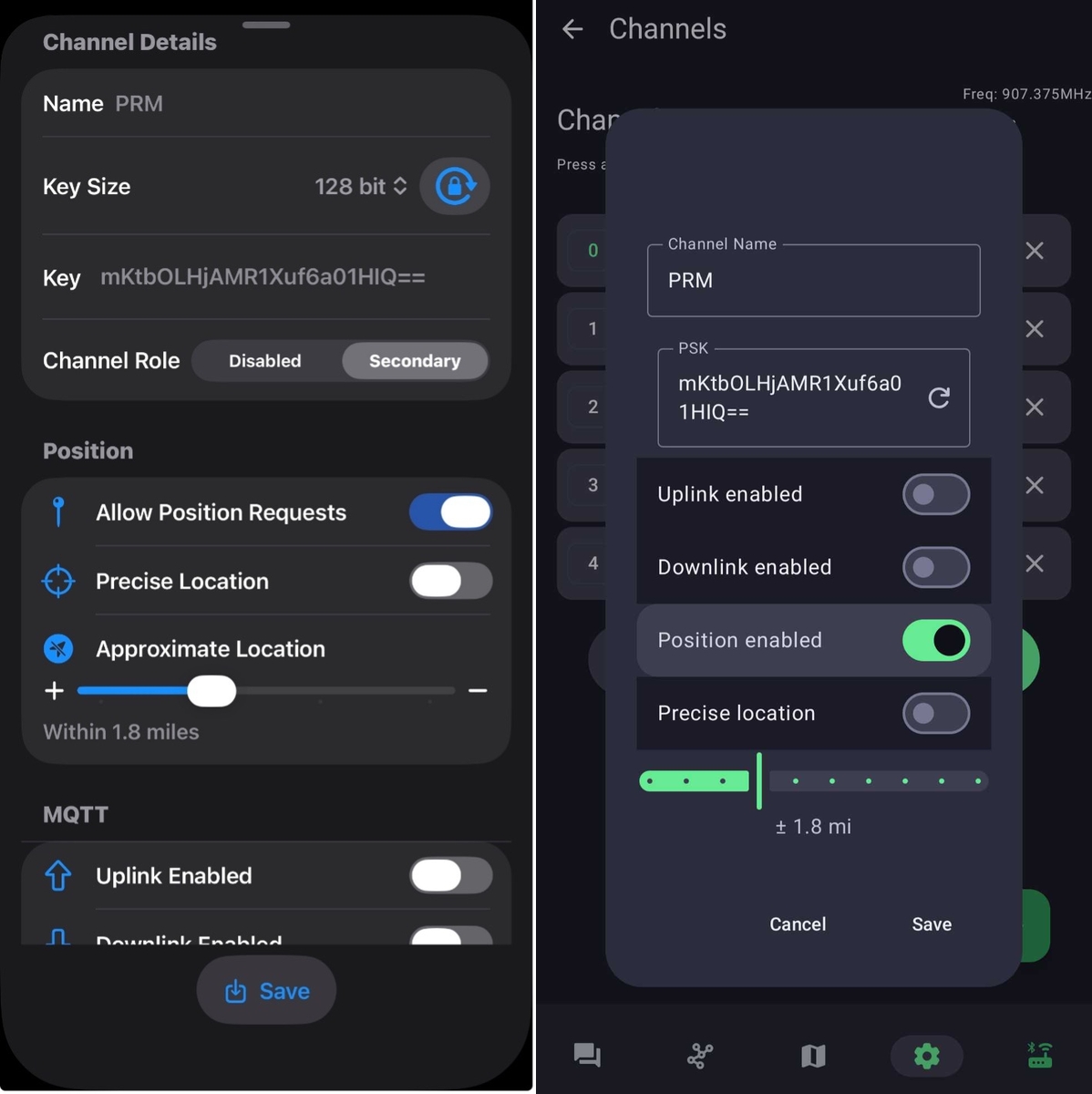
Channel: Name | Add the PRM channel as a secondary channel | Add the PRM channel as a secondary channel | The Channel Name is PRM, key size is 128 bit, and the key is mKtbOLHjAMR1Xuf6a01HIQ==. When changing from LongFast to MediumSlow or LongTurbo, double check that your primary channel name is still correct. If it’s blank or is named “Primary Channel” that is correct. But if it was manually named and still says “LongFast” then you’ll need to change it to “MediumSlow” or “LongTurbo”. |
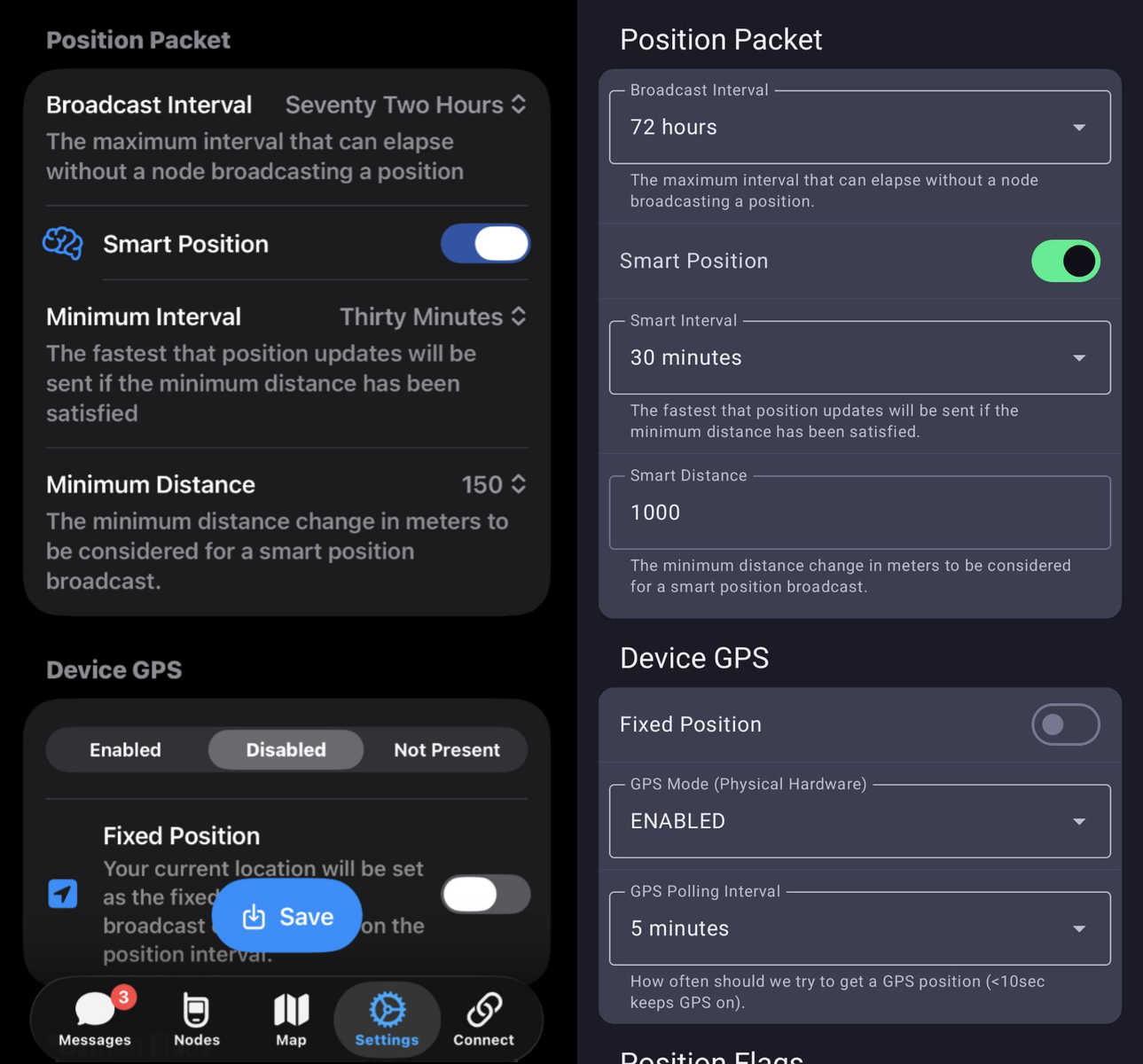
Position: Broadcast Interval | >= 72 Hours | >= 6-72 Hours | If you enable position please do not share it any more frequently than these settings to preserve mesh bandwidth. |
Position: Smart Position | Disabled | Enabled | If you enable position please use these settings |
Position: Smart Position Min Interval | N/A | >= 15-30 minutes | If you enable position please do not set it to more frequently than every 15 minutes to conserve mesh bandwidth. |
Position: Smart Position Min Distance | N/A | 150m (iOS) or 1,000m (Android) | The difference is due to iOS/Android app differences. |
Okay to MQTT | Enabled | Enabled | This is optional, but enabling this allows PhillyMesh to get a better idea of how the mesh is working. Your node info and messages will show up on the internet at api.phillymesh.net, and can be useful for troubleshooting. This also allows others besides PhillyMesh to see your node and messages via MQTT. |
Store & Forward | Disabled | Disabled | Only enable if you have a specific use case. |
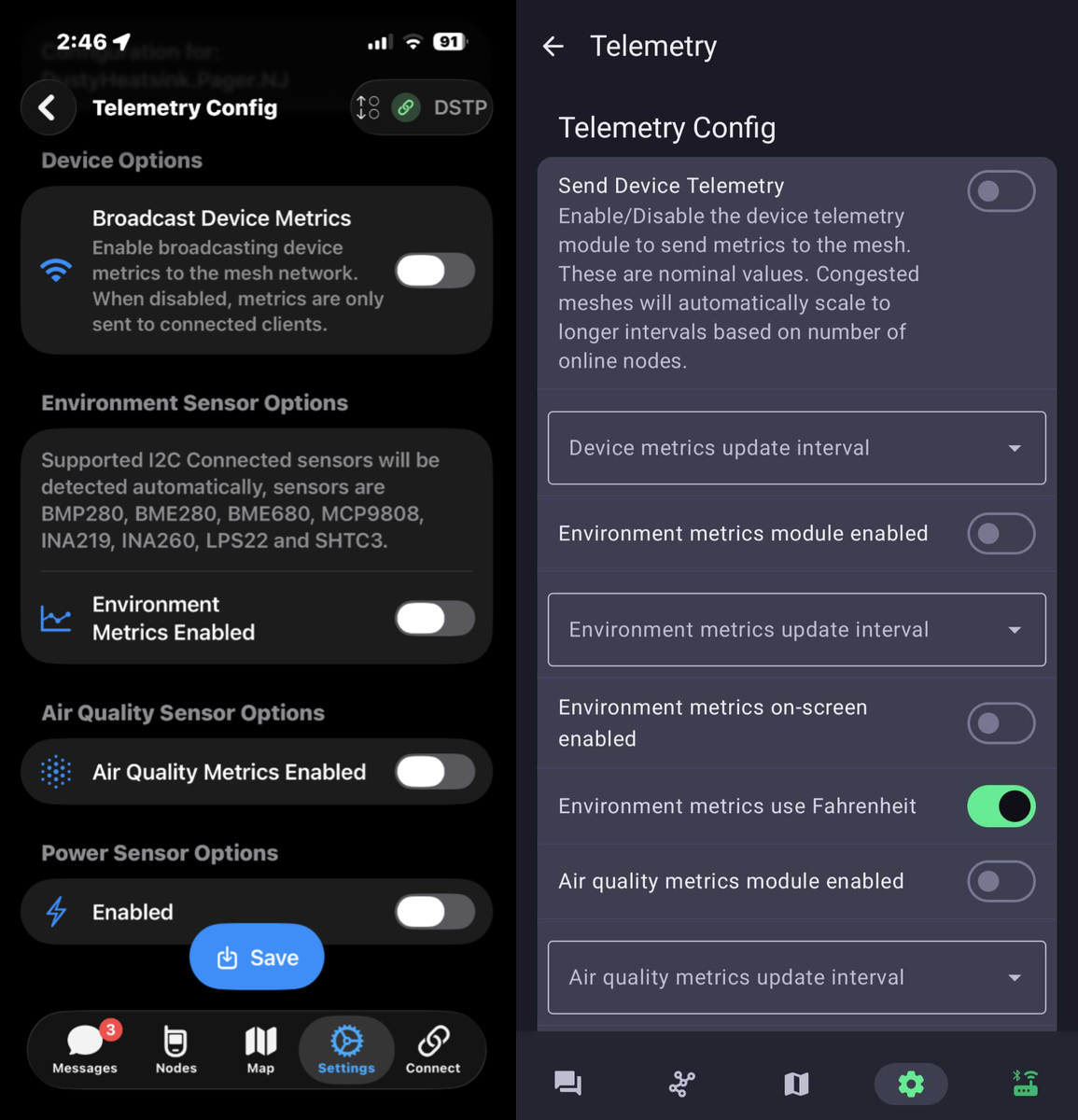
Telemetry | Disabled unless you rely on it to see the health of your node | Disabled | For stationary solar nodes, telemetry sending power/environment information may be essential to you. However, if you can connect to your node over Bluetooth or TCP instead we recommend you disable telemetry and monitor your node that way. |
Screenshots
Some example screenshots from the Meshtastic app on iOS and Android, and are to help demonstrate where to find the settings from the table above. Note that the actual settings that are filled in are for a Mobile Node. A Base/Stationary Node should use the settings per the above table. These are also shown for the MediumSlow22 test. The LoRa preset and slot settings specifically will change for LongTurbo12. Menu locations of each of these below screenshots are described for iOS (left screenshot) and Android (right screenshot).
LoRa Config
[iOS] Settings » Radio Configuration » Lora
[Android] Settings » (Radio Configuration Section) LoRa
Device Role
[iOS] Settings » Device Configuration » Device
[Android] Settings » (Device Configuration Section) Device Configuration » Device
Position Config
[iOS] Settings » Device Configuration » Position
[Android] Settings » (Device Configuration Section) Device Configuration » Position
Channel Config
[iOS] Settings » Radio Configuration » Channels
[Android] Settings » (Radio Configuration Section) Channels
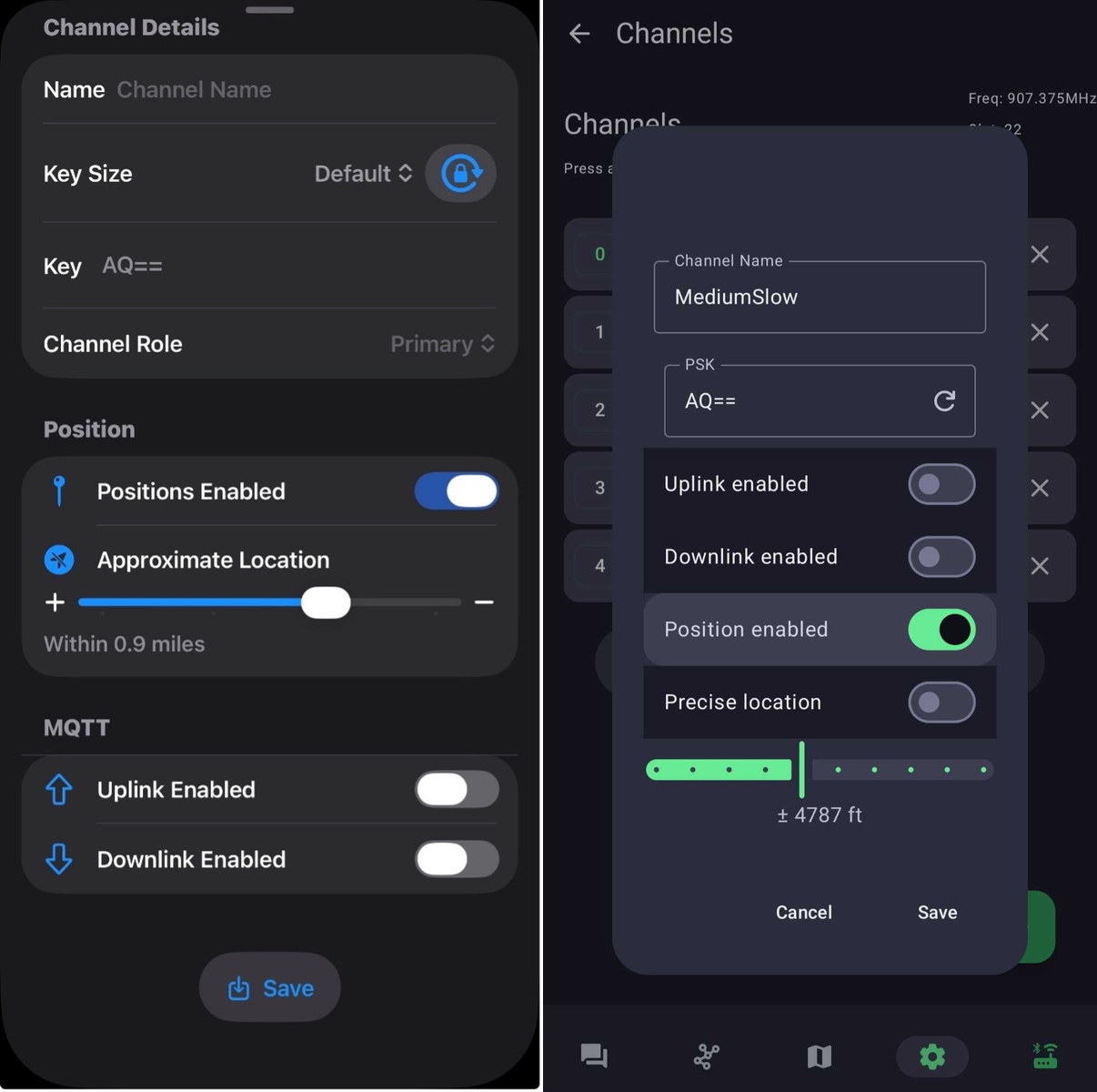
Secondary Channel Config
[iOS] Settings » Radio Configuration » Channels
[Android] Settings » (Radio Configuration Section) Channels
Telemetry
[iOS] Settings » Module Configuration» Telemetry
[Android] Settings » (Module Configuration Section) Module Configuration » Telemetry